

















< Previous | Contents | Manuals Home | Boris FX | Next >
Seeing and Checking Roto Layer Stackups
If you have a complex set of overlapping layers, you might wonder if you’ve got it
right! This is especially true for stacks involving moving objects and the camera.
You can see the results by turning on RotoMask button on the View toolbar in the Camera View. You’ll see a pink checkerboard everywhere that the auto-tracker will be ignoring for the current object. (You can drag the button to change the alpha value, here a=51.4%, for the superimposed checkerboard. Right-click it to turn the feature off.)
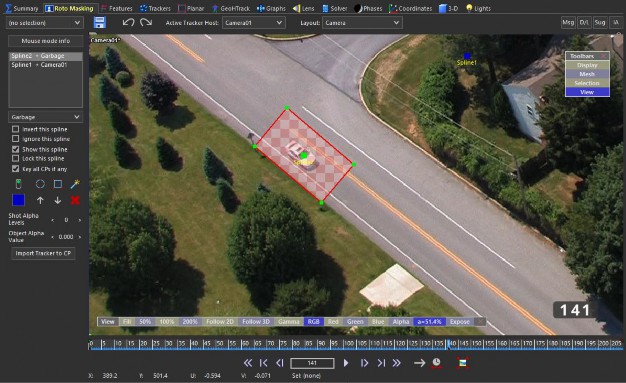
To work through the details of a more complex situation, suppose your stack assigns blips to the camera and some to a moving object. While the camera is selected as the Active Tracker Host, you’ll see the checkerboard showing which areas are ignored and won’t be assigned to the camera. If you change the Active Tracker Host to Object01 or whatever, you’ll see a different (ie larger) checkerboard showing the areas that won’t be assigned to the moving object. Any garbage area will show up in both checkerboards, and no usable area will be assigned to both the camera and object.
If you want to see a non-overlaid version of these images (which can make it easier to spot small fringy areas), turn on both Alpha and RotoMask and you’ll get a plain black and white image, not an overlay. The B/W image will still reflect the situation as seen for the current Active Tracker Host.
©2026 Boris FX, Inc. — UNOFFICIAL — Converted from original PDF.
